Import Browser Settings and Chrome Extensions
After installing Ghost Browser there two important settings you should know about.
Importing Your Chrome Extensions and Settings
In order to help make the transition from Chrome to Ghost Browser easier, we created a tool which allows you to import your Chrome data into Ghost Browser, including your extensions!
We take your privacy seriously. When you import this information into Ghost Browser, it is stored locally and is never transmitted through our servers.
To import bookmarks, extensions, and settings from Chrome to Ghost Browser:
- In Ghost Browser, click the three-dot browser menu in the upper right corner and select Import Settings and Chrome Extensions. The Import bookmarks and settings window will open.
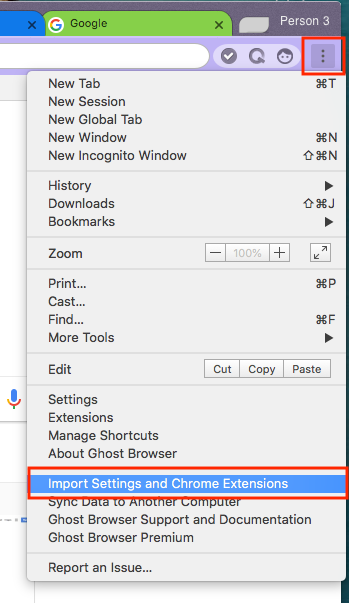
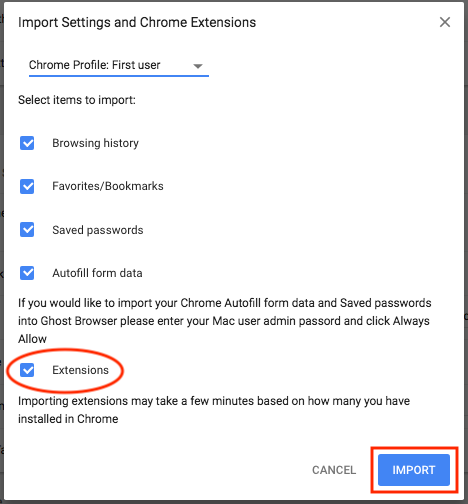
- Use the drop-down menu to select the Chrome profile for which you want to import the data into Ghost Browser.
- If you want to import your Chrome extensions, make sure to check the Extensions box.
- Click Import.
Notes:
- If you already created one bookmark before importing your bookmarks, your bookmarks from this import will all be placed in a folder called, Import. Otherwise, they’ll display across the bookmarks bar as expected.
- If Chrome is currently open, a message appears asking you to save all work in Chrome. Once you have done this, click Force Quit and Import. If you are prompted more than twice to quit Chrome, open Chrome, and select Menu > Exit.
Importing Settings from Other Browsers
You can easily import your Chrome, Safari, Firefox and IE browser data into Ghost Browser. If you’re coming from Chrome you can even import your extensions by following the instructions above.
We take your privacy seriously. When you import this information into Ghost Browser, it is stored locally and is never transmitted through our servers.
To import your data from your old browser to Ghost Browser:
1. From Ghost Browser, click the three-dot browser menu in the upper right corner and select
Import Settings and Chrome Extensions
. The Import bookmarks and settings window will open.
2. Use the
From
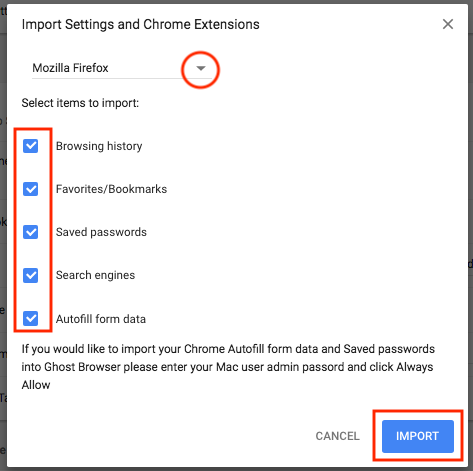
drop-down menu to select the browser for which you want to import the data into Ghost Browser.
3. Remove any checkboxes for data you do not want to import.
4. Click Import.
Note: If you’ve already created a bookmark before importing your bookmarks from another browser your imported bookmarks will be placed in a folder on the bookmarks bar. If importin from Internet Explorer, all bookmarks are placed in a folder called “Imported from IE”. If importing from Firefox, all bookmarks are placed in a folder called “Imported from Firefox”.
Importing Settings from an HTML File
You can import Chrome, Firefox, or IE bookmarks and settings as an HTML file. After saving your bookmarks and settings in an HTML file, you can import them into Ghost Browser.
If you’re importing your settings from Chrome: You can import your Chrome extensions in addition to your bookmarks and settings. If you’d like to automatically import your bookmarks, settings and Chrome extensions, please see the above instructions.
Saving Chrome bookmarks as an HTML file
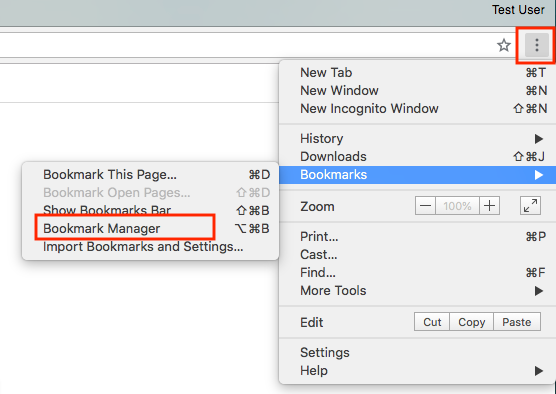
1. From Chrome, click the three-dot browser menu in the upper right corner of the browser and select
Bookmarks
>
Bookmarks Manager
.
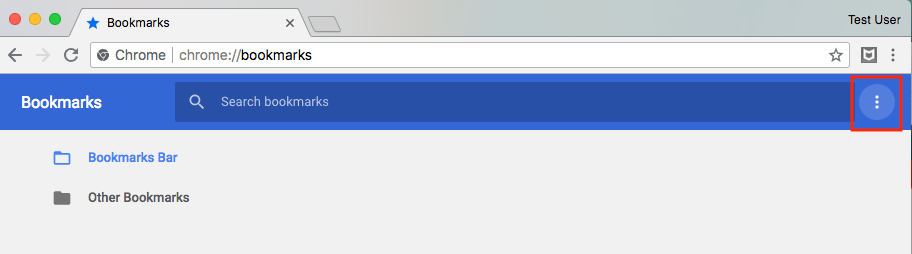
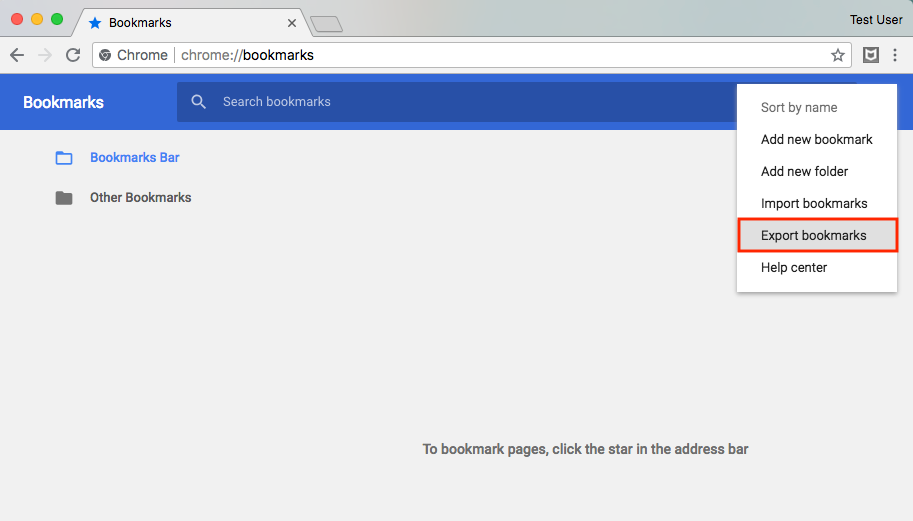
2. From the Bookmark Manager window, click the three-dot menu in the blue bar and then
Export bookmarks to HTML file
.
3. Select a location to save the file and then click Save.
Note: The default file name is “bookmarks_[today’s date].html”. You can edit this name if necessary.
Saving Firefox bookmarks as an HTML file
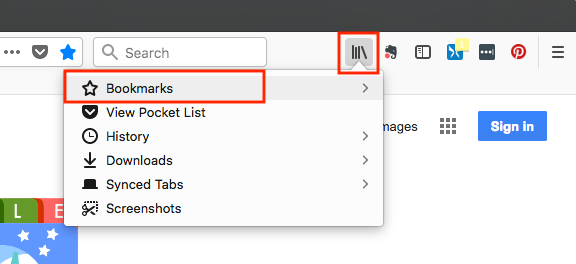
1. From Firefox, click the
Bookmarks
icon and then select
Show All Bookmarks
.
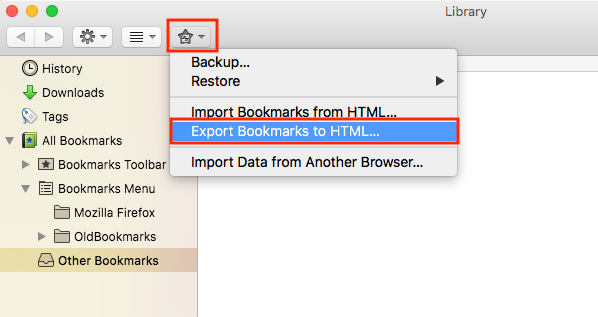
2. From the Library window, select
Import and Backup > Export Bookmarks to HTML
.
3. Select a location to save the file and then click Save.
Note: The default file name is bookmarks.html. You can edit this name if necessary.
Saving IE bookmarks as an HTML file
1. From IE, select the
Favorites
icon.
2. From the menu, select
Import and Export
.
3. Select the
Export
to a file
button and then click
Next
.
4. Select the
Favorites
checkbox and then click
Next
.
5. Select the folder from which to export your bookmarks and click
Next
.
6. Select a location to save the file and then click Save.
Note: The default file name is bookmark.htm. You can edit this name if necessary.
Import the HTML file into Ghost Browser
After you have created the HTML file, you can import it into Ghost Browser.
1. From Ghost Browser, click the three-dot browser menu in the upper right corner of the browser and select
Bookmarks > Import bookmarks and settings
.
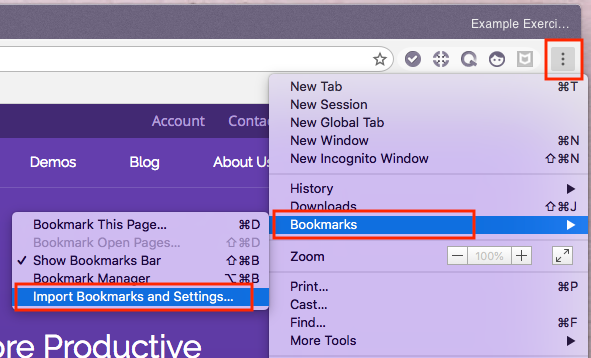
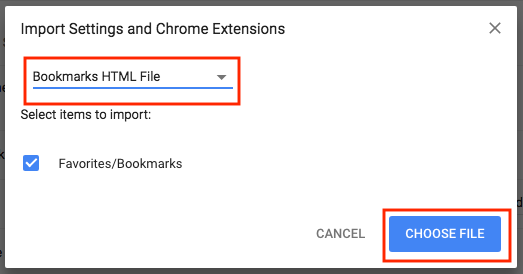
2. From the Import bookmarks and settings window, select
Bookmarks HTML File
using the “From” menu.
3. Click
Choose File
and navigate to the saved HTML file.
4. Click
Open
. After the HTML file has been imported to Ghost Browser, a Success message appears.
5. Click Done to close the Success message.
Setting Ghost Browser as your Default Browser
We think it’s a great idea if you want to make Ghost Browser your default browser! You’ll see a serious boost in productivity and making Ghost Browser your default browser is easy.
1. From Ghost Browser, click the three-dot browser menu in the upper right corner of the browser and select Settings.
Note: macOS users also have the option of selecting Preferences from the Ghost Browser menu at the top of your screen.
2. At the bottom of the Settings page, click
Make Ghost Browser the default browser
.
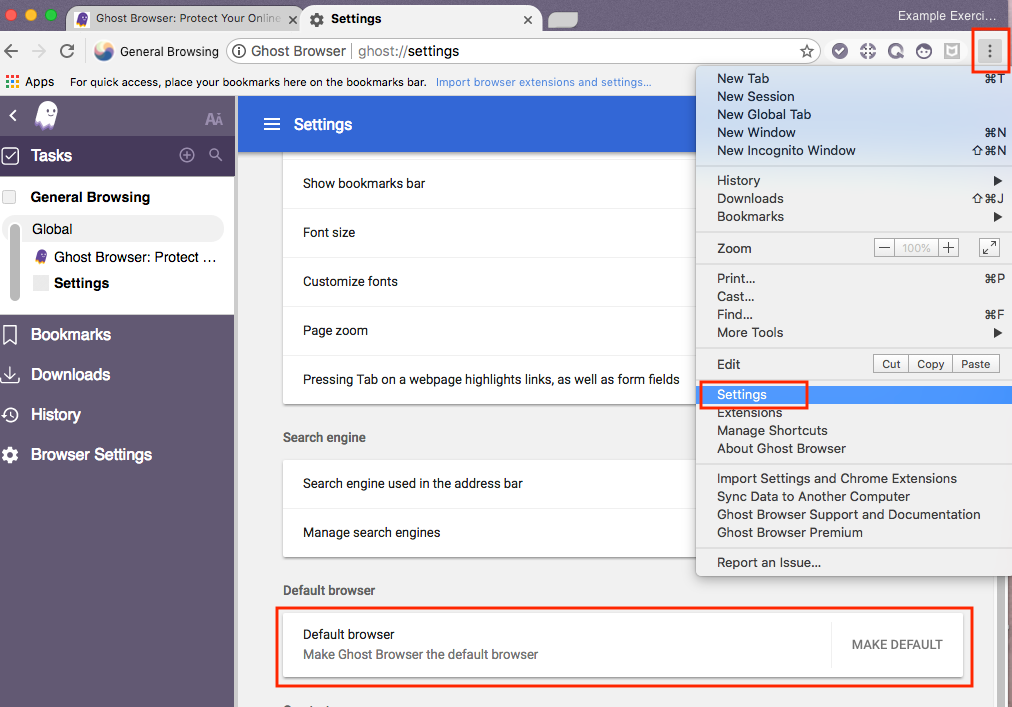
3. Click Yes if a message appears.
Installing Chrome Extensions
Ghost Browser works just like Chrome when installing extensions. Just open Ghost Browser and navigate to the Chrome store, and install any extension you want. It’s that easy!
Need help? Contact us.
Last updated on October 18, 2021